The fastest way to turn slides into study-ready flashcards is an AI tool that reads your slide text and speaker notes, generates atomic Q&A or cloze cards, and lets you edit before exporting for spaced repetition. An AI tool builds this workflow specifically for exam prep. It supports Anki-compatible exports and card types that match how you actually study, and it leans on active recall, the same principle behind long-term skill retention.
TL;DR:
- Converting slides to flashcards is fastest when slides are cleaned up, with focused speaker notes and filler slides removed before export.
- Combining slide text and speaker notes leads to more accurate and exam-relevant flashcards, especially when using AI that emphasizes atomic questions and concepts.
- PPTX, PPT, and PDF files work best for conversion; image-heavy decks require OCR and image occlusion for visual content.
- Automated generation can cover entire lecture series quickly but still requires human review to ensure accuracy and relevance for exam focus.
- In-app spaced repetition or exporting to platforms like Anki is essential for effective long-term retention beyond initial automation.
Table of Contents
- How to Convert Slides to Flashcards in Five Steps
- How to Make AI-Generated Flashcards Accurate and Exam-Ready
- What File Types Work Best for Slide-to-Card Conversion?
- How Do You Schedule Spaced Repetition After Generating Cards?
- BoardMaster's Approach to Slides, Cards, and Practice
- When to Trust the AI and When to Curate by Hand
- Try BoardMaster: Convert Slides, Get Cards, Start Practicing
- Sources
- FAQ
How to Convert Slides to Flashcards in Five Steps
Getting from a raw deck to a usable study set takes maybe ten minutes of prep and a few minutes of editing. Here's the sequence that actually works.
- Clean up your slides first. Add or tighten speaker notes, flag terms your professor emphasized in lecture, and delete slides that are pure filler (title slides, agenda pages, thank-you slides). Messy input produces messy cards.
- Export Google Slides as PPTX if needed. Most converters accept PPTX, PPT, and PDF, but not a live Google Slides link. Go to File, then Download, then choose PowerPoint (.pptx) or PDF.
- Upload the file and set your parameters. Pick a card style (cloze, Q&A, or a mix) and roughly how many cards you want per slide or per deck.
- Run the generation and skim the output. This is where a tool like BoardMaster's flashcard engine can produce a full deck in seconds rather than the hour it takes to write cards by hand.
- Edit before you trust anything. Check for one idea per card, add missing context, and tag cards by topic so you can filter later.
Once the deck is edited, your export choices determine how you'll actually study:
- .apkg file for Anki or any Anki-compatible app
- CSV for spreadsheet review or bulk edits
- Quizlet import if that's your existing platform
- In-app spaced repetition if you want to skip exporting entirely and start reviewing immediately
How to Make AI-Generated Flashcards Accurate and Exam-Ready
Raw AI output is a draft, not a final product. Speaker notes matter more than most students realize: slide text is usually a bullet-point skeleton, while speaker notes carry the actual explanation a professor gave out loud. A tool that reads both produces noticeably better cards than one that only scrapes visible text, which is one reason including notes before upload cuts down on edit time later.
Atomicity is the other half of the equation. A card testing three ideas at once is a card you'll flag as "sort of knew it" forever, which wrecks your spaced-repetition data. Good cards test exactly one fact or one mechanism.
- Use cloze deletion for discrete facts (drug doses, lab values, dates).
- Use Q&A format for concepts, mechanisms, and "why" questions.
- Use image occlusion for diagrams, anatomy, and histology slides where the picture is the content.
Before you trust a card for real studying, run it through a quick checklist: is the question stem specific enough to have one correct answer, does the answer avoid vague scope, and would a hint help without giving away the answer?
Pro Tip: Auto-generate broad coverage across an entire lecture series first, then hand-write 10 to 15 high-yield cards for the concepts your professor repeated more than once. Those repeats are usually exam bait.
What File Types Work Best for Slide-to-Card Conversion?
PPTX, PPT, and PDF cover nearly every lecture format you'll encounter, and speaker notes get pulled in automatically when they're present in the file. Where things get tricky is image-heavy content: a slide that's mostly a diagram or a histology image needs OCR to extract any labeled text, and even then, image occlusion usually beats a literal text card for anything visual.
Google Slides users have one extra step. Export as PPTX or PDF using File, then Download, before uploading. If speaker notes didn't carry over cleanly, copy and paste them into a text box on the slide itself as a workaround.
For a full semester's worth of lectures, don't dump 40 decks into a converter at once.
- Batch by unit or by exam block, not by entire semester.
- Watch for file size caps on image-dense decks (histology, radiology, gross anatomy).
- Chunk long lecture series into 5 to 8 decks at a time so you can review quality before moving to the next batch.
How Do You Schedule Spaced Repetition After Generating Cards?
Cards without a review schedule are just a glorified summary document. Active recall combined with spaced repetition is what actually builds durable memory, turning shaky first-pass recognition into the kind of automatic recall you need under exam pressure.
Once your deck is built, you have two paths: export to an established spaced-repetition client, or study inside the tool that generated the cards.
- Export as .apkg if you already run Anki and want to keep your existing decks and settings.
- Use in-app SR if the tool offers SM2 or FSRS-style scheduling, which adjusts review intervals based on how well you know each card.
- Tag cards by topic and difficulty so you can filter to "struggling" cards during crunch weeks instead of reviewing the whole deck blind.
A simple two-week schedule before a midterm: days 1 to 4, generate and edit cards for each lecture as it's taught. Days 5 to 10, daily mixed review across all tagged topics. Days 11 to 14, filter to only "hard" or "again" cards and drill those exclusively.
BoardMaster's Approach to Slides, Cards, and Practice
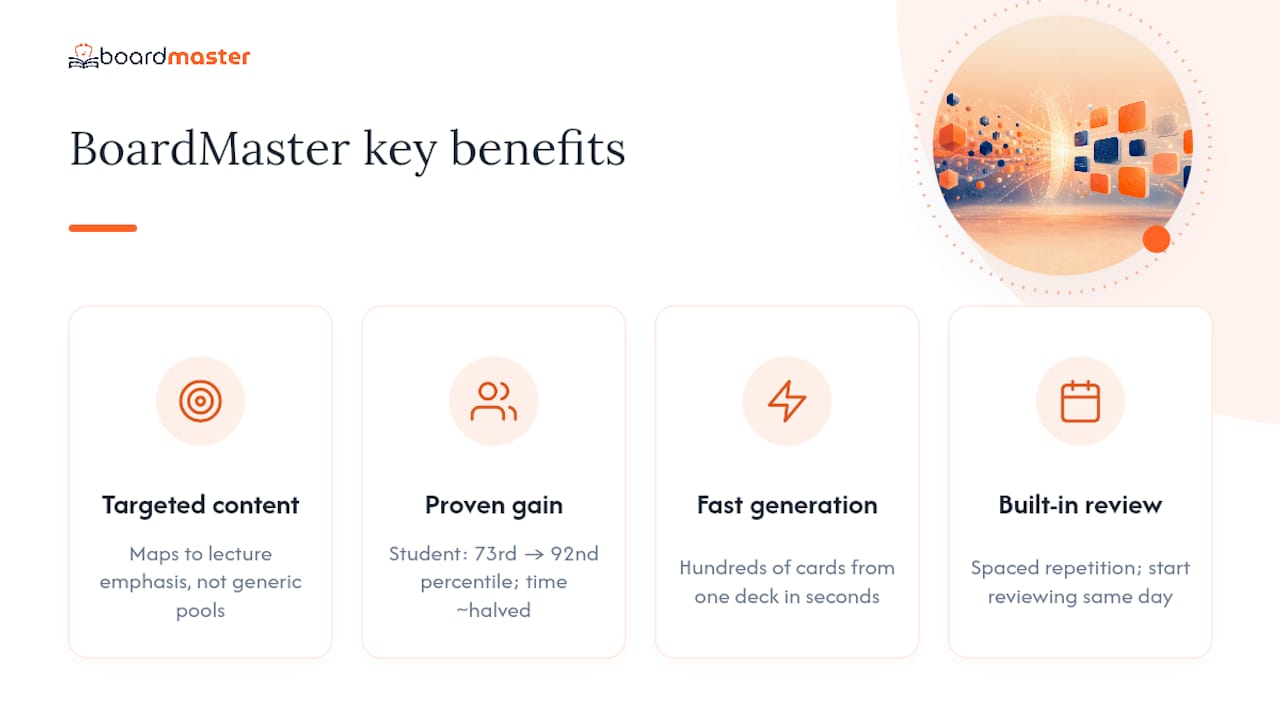
This tool reads uploaded lecture slides and speaker notes, then generates both AI flashcards and USMLE-style practice questions tied to what individual professors actually emphasized. That's a meaningfully different target than a generic flashcard app, because board exam prep and class exam prep don't always overlap, and a tool built for one often shortchanges the other.
The clearest illustration comes from a student named Sarah, who used targeted questions to move from the 73rd to the 92nd percentile while cutting her study time roughly in half. That's not a universal guarantee, but it shows what happens when generated content maps directly to lecture emphasis instead of generic question pools.
Card generation on BoardMaster runs fast enough to produce hundreds of cards from a single lecture deck in seconds, with in-app spaced repetition built in so you can start reviewing the same day you upload.
You can try the flashcard generation on a real deck through the free demo before committing to anything.
When to Trust the AI and When to Curate by Hand
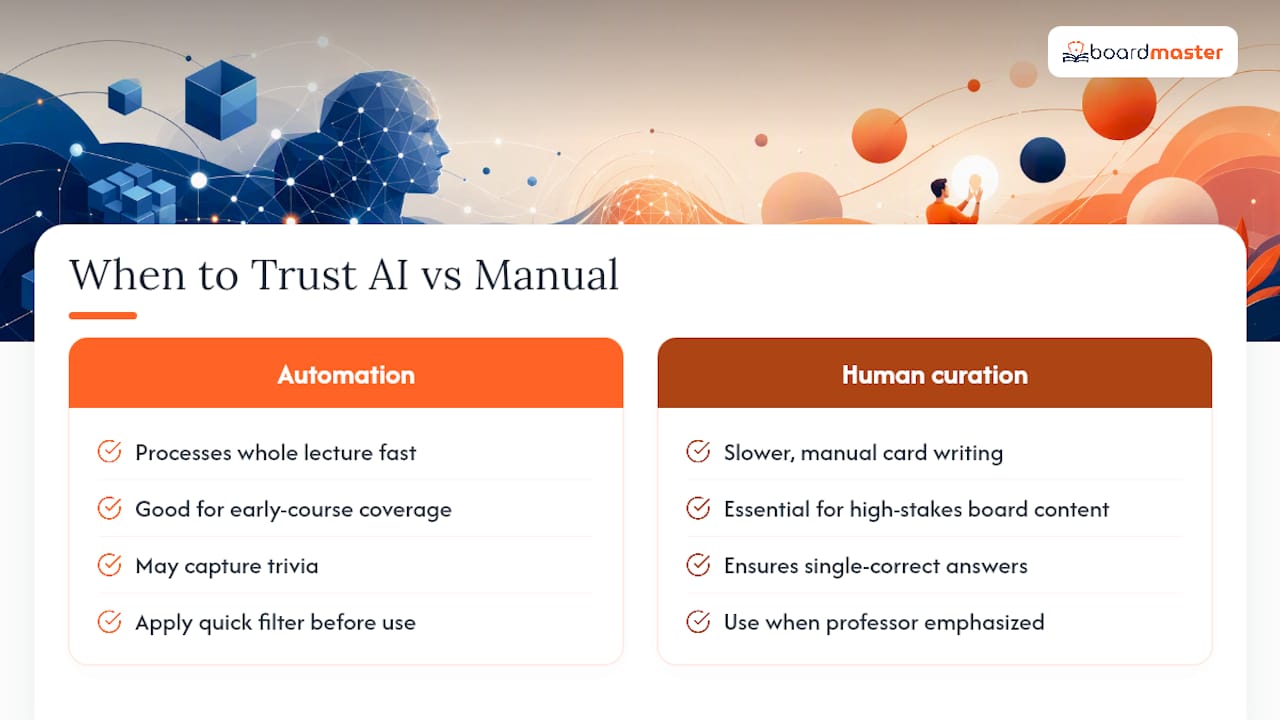
Automation wins on breadth. It can process an entire lecture series in the time it takes you to write ten cards manually, which matters most early in a course when you're building coverage. But high-stakes board content deserves a human check.
Before trusting any generated card for real exam prep, run through this quick filter: does the stem have exactly one correct answer, does it test a concept rather than trivia, and does it match something your professor actually emphasized rather than something the slide just happened to mention?
— Dr. Ahmed Abuzoor
Try BoardMaster: Convert Slides, Get Cards, Start Practicing
This tool is an alternative to writing flashcards by hand or copy-pasting bullet points into a generic app. It reads slides and speaker notes, builds cloze and Q&A cards tailored to what a professor emphasized, and schedules review with built-in spaced repetition, so decks are aligned to class and board exams instead of two separate study systems.
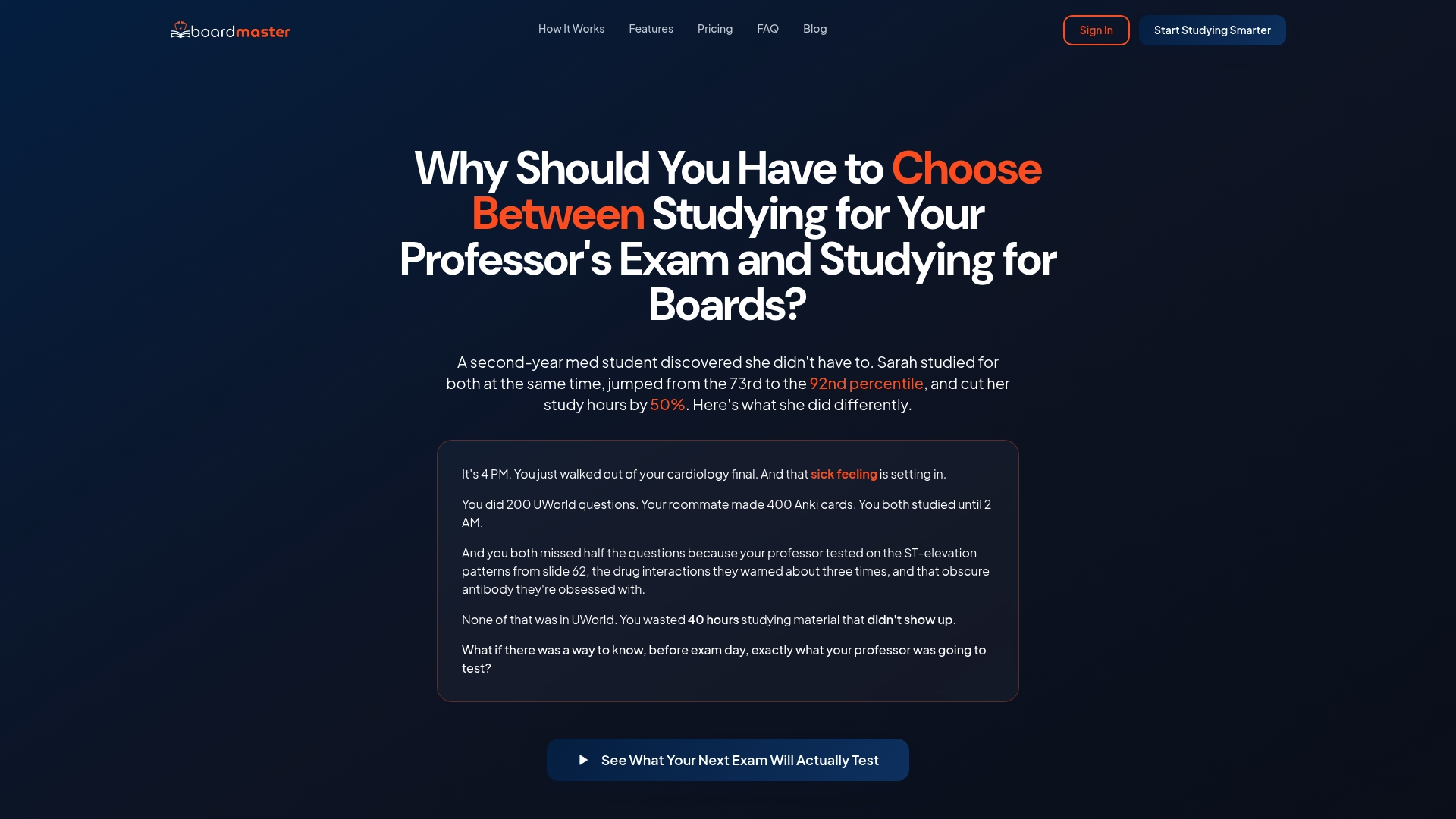
A quick demo run lets you upload one lecture deck and preview the generated cards before you commit to anything, which is the fastest way to judge whether the card quality matches your course. If it does, the same flashcard engine scales to your full semester. Start with a deck on the BoardMaster landing page and see what your next lecture looks like as a study-ready set.
FAQ
How Do I Turn Google Slides Into Flashcards?
Export your Google Slides deck as PPTX or PDF (File, then Download), then upload that file to an AI flashcard converter, since most tools accept PPTX/PDF but not a direct Google Slides link.
How Can I Turn PowerPoint Slides Into Flashcards?
Upload your PPTX or PPT file directly to a converter like BoardMaster, which reads both the slide text and any speaker notes to generate Q&A or cloze cards you can edit before exporting.
Can ChatGPT Make Flashcards?
ChatGPT can draft flashcard-style questions if you paste in slide text, but it won't parse a PPTX file, read embedded speaker notes, or export to Anki-compatible formats the way a purpose-built slide-to-flashcard tool does.
Is There a Way to Turn a PowerPoint Into a Study Guide?
Yes. Uploading the deck to a tool that reads slide text and speaker notes and generates tagged, editable flashcards effectively turns the presentation into a structured study guide organized by topic instead of slide order.
What File Formats Work Best for Converting Slides to Flashcards?
PPTX, PPT, and PDF are the most reliably supported formats, and decks with speaker notes included tend to produce noticeably higher-quality cards than slide text alone.